
Build “local-feeling” remote pairing by removing input friction
Remote pairing breaks down less from video quality than from tiny mismatches in how input behaves: a shortcut that fires on one machine but not the other, an editor keybinding that silently differs across OSes, or a modifier key that changes meaning mid-session. When those paper cuts stack up, the session stops feeling like “we’re at the same desk” and starts feeling like “we’re operating two different computers.”
This guide focuses on three practical levers that make remote pairing feel local: keyboard shortcut parity, keymap portability, and cross‑OS input consistency. Along the way, we’ll use tuple.app as the reference point because it’s built specifically for pair programming: sharp screen sharing, crisp audio, low-latency remote control, and fully customizable shortcuts—exactly the ingredients you need when you’re aiming for muscle-memory fidelity.
Shortcut parity as an engineering problem, not a preference
Shortcut parity means the same intent produces the same outcome for both people, regardless of who is driving. That sounds subjective, but you can treat it like any other reliability issue: define the expected behavior, isolate sources of drift, and standardize the critical path.
Define a “pairing-critical” shortcut set
Don’t try to synchronize everything. Start by listing shortcuts that directly affect flow during pairing:
- Navigation: quick file open, symbol search, jump to definition, back/forward.
- Editing: multi-cursor, rename, format document, comment/uncomment, line move/duplicate.
- Execution: run tests, run current file, toggle terminal, debug start/step.
- Session controls: role swap, annotation, mute, push-to-talk, “hide sensitive windows.”
These are the ones that, when inconsistent, create constant micro-interruptions (“what’s the shortcut on your side?”). Everything else can remain personal.
Separate editor shortcuts from pairing app shortcuts
Input conflicts are common: the pairing tool may reserve a key combo that your editor expects, or the OS may intercept it first. The most stable approach is to:
- Keep OS-global shortcuts minimal during pairing hours (e.g., avoid OS-wide remaps that steal common editor combos).
- Ensure the pairing app’s controls use unlikely combos.
- Make editor shortcuts the primary “muscle memory” layer.
Tuple’s customizable keyboard shortcuts help here because you can align session controls to your team’s conventions rather than teaching everyone a new set of gestures.
Keymap portability that survives machines, OSes, and repos
Portability is the difference between “my shortcuts are perfect” and “my shortcuts are perfect anywhere.” In pairing, the second is what matters.
Choose a canonical keymap and treat it like config
Teams often end up with one of two workable models:
- Canonical editor model: one editor family (e.g., VS Code) and a shared baseline of keybindings. Individuals can layer personal overrides, but the baseline is consistent.
- Canonical behavior model: mixed editors, but consistent behaviors (e.g., “rename symbol” is always a single chord, “format file” is always a single chord), documented and mapped per editor.
Either way, store the canonical layer in version control. Think of it like lint rules: you’re reducing variance so collaboration is faster.
Use “one export, many imports” workflows
Most modern editors support exporting settings or keybindings. Make it routine:
- Export the baseline keymap to a repo (or a dedicated dotfiles repo).
- Provide an install script or a short checklist that imports it.
- Pin extensions/plugins that affect keybindings so updates don’t silently change behavior.
If your team already worries about portability and lock-in elsewhere, the same mindset applies to keymaps: keep the source of truth outside any single machine. (The logic mirrors the idea behind an export-ready checklist to avoid vendor lock-in—your pairing setup is another form of operational dependency.)
Cross-OS input consistency and the modifier key trap
The hardest pairing edge cases appear when macOS and Windows meet. The visible difference (Command vs Control) is the easy part; the subtle differences are what derail flow.
Establish a “modifier mapping” convention
Pick one of these conventions and write it down:
- Mac-first convention: “Command is primary.” Windows users map their primary editor shortcuts to Control but keep the same shape of chords (e.g., primary modifier + P for file open).
- PC-first convention: “Control is primary.” Mac users map editor shortcuts to Control-based equivalents for pairing sessions.
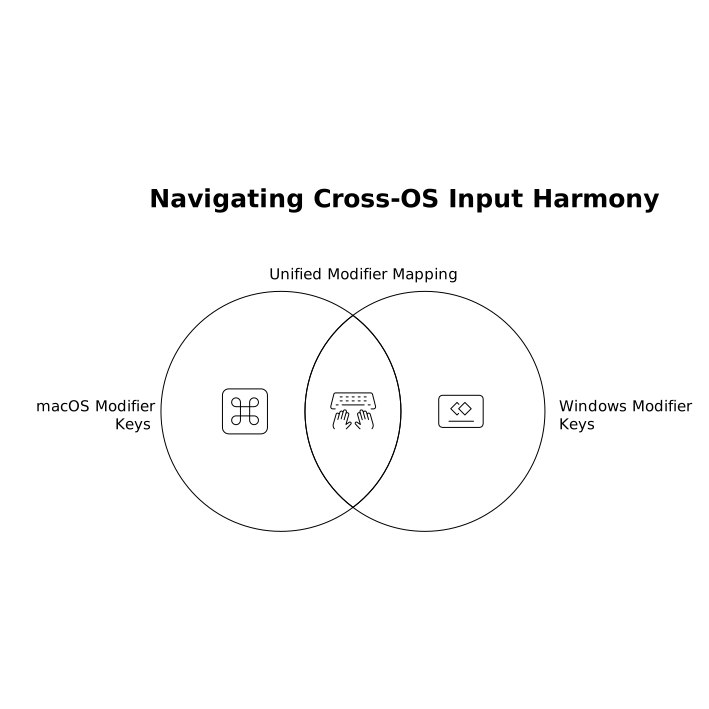
There’s no universal right answer. The key is that your team’s pairing-critical actions must be predictable, and the mapping must be deliberate.
Normalize layouts and dead keys
International layouts, dead keys, and OS text services can create “it works on my machine” issues during remote control. Practical mitigations:
- Agree on a default keyboard layout for pairing sessions when feasible.
- Document any non-obvious dead-key sequences used for common characters in your codebase.
- Be cautious with shortcuts that rely on characters produced differently across layouts (e.g., brackets, backticks).
Resolve OS-reserved shortcuts before they bite you
Some key combos are effectively non-negotiable because the OS captures them (or captures them inconsistently). Instead of fighting them mid-call:
- List “forbidden shortcuts” for your team’s setup and avoid binding critical actions to them.
- Prefer editor commands that can be triggered from a command palette as a fallback.
- Keep at least one alternate path for each pairing-critical action (menu, palette, or a secondary binding).
Make remote control feel snappy by aligning expectations
Even with perfect keymaps, pairing can feel “remote” if control handoffs are awkward or latency forces people to hesitate. Treat the session like a shared workstation with explicit etiquette:
- One driver at a time: avoid simultaneous input unless you’re intentionally using it for teaching.
- Fast role swapping: swap who’s sharing the moment it’s faster than narrating. Tuple’s one-click role swap supports this rhythm.
- Use annotations for intent: a quick highlight or scribble often beats verbal navigation, especially when guiding through unfamiliar code.
- Privacy defaults: hide sensitive apps/notifications before sharing to reduce “hold on, let me close…” interruptions; Tuple’s App Veil is designed for that preflight moment.
These are small process choices, but they amplify the value of shortcut parity: once the mechanics are consistent, your attention returns to the code.
A practical “parity checklist” you can run in 15 minutes
Before a new project kicks off (or when onboarding someone new), run a short alignment pass:
- Confirm the pairing-critical shortcut set (10–15 commands max).
- Verify the modifier convention (Mac-first or PC-first).
- Import the baseline keymap and confirm version/extension parity.
- Test conflicts: trigger each command while on a call to see what gets intercepted.
- Validate role swap and remote control: make sure both people can reliably drive.
- Lock in privacy and focus defaults: notification settings, hidden apps, and a “clean share” routine.
If you want to systematize it, consider turning this into a lightweight weekly hygiene task alongside other operational rhythms. (A structured cadence similar to a two-clock weekly planning ritual can keep collaboration setups from drifting over time.)
The real goal is muscle memory you can trust
When remote pairing feels local, it’s because your hands can move without negotiation. Shortcut parity eliminates constant clarification. Keymap portability prevents “new machine” regressions. Cross‑OS consistency keeps Command-vs-Control from becoming the center of attention. Pair that with a tool that prioritizes low-latency control, crisp audio, and customizable shortcuts, and the mechanics fade into the background—where they belong.